Run your first ShuttleOps club session
Create your club, add courts and players, run your first Digital Peg Board session, close it, and review your first ShuttleOps payment record.
Set up your club, add courts and players, run the Peg Board, close the session, and check the first payment record.
From a blank club to a closed first session.
Follow these steps in order. You will set the club rules once, prepare the people and courts, then use one live session to check the full workflow.
Start with a simple session. Add advanced booking, team, and notification rules after your helpers know the basic run sheet.
Your first session, step by step
- Before club night
Create your club
After account confirmation, create a club and add its name, location, and public details. Choose whether people can find it in search or join through a private Club ID.
Set the default session prices and attendance rules now. You can change them for an individual session later.
- Before club night
Add courts and players
Add the location and physical courts you use. ShuttleOps records them for session setup. It does not book the facility for you.
Add your players or invite registered members. Guests can take part, but only registered players can sign in, respond, pay, and see personal history.
- On club night
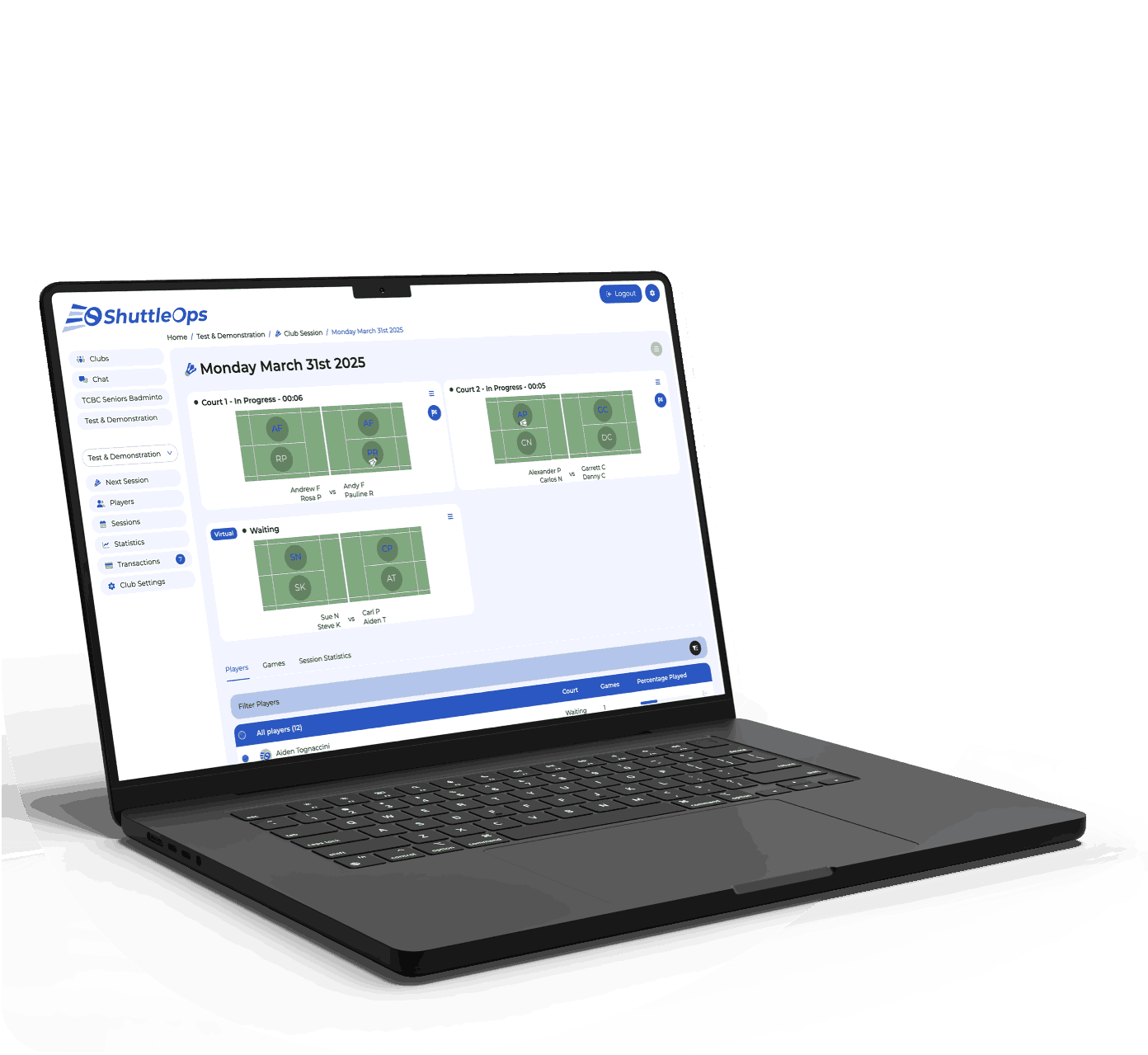
Create the session and open the Peg Board
Create a session with its date, time, location, courts, prices, capacity, and attendance rules. Mark attending players as available when they arrive.
Start the Digital Peg Board. It assigns available players to physical courts and rotates waiting players through a virtual court. You can adjust games when needed.
- After each game
Finish games and close the session
When a game ends, finish it and add the score if your club records scores. ShuttleOps can then select the next group from waiting players.
After the final game, close the session. The saved record includes attendance, session totals, game time, wait time, partners, and opponents.
- After the session
Review the first payment record
Payments start from the club and session rules. With payments enabled, confirm attendance and review each amount due in the transaction view.
ShuttleOps records successful charges, failures, offline payments, balances, and club payouts. Registered players can check their balance and payment history. Payment instalments are not supported.
Pay-as-you-go session payments start on Standard. Pro adds memberships and monthly payments. Direct Debit carries separate Stripe and ShuttleOps fees. Each is 1% with a 20p minimum.